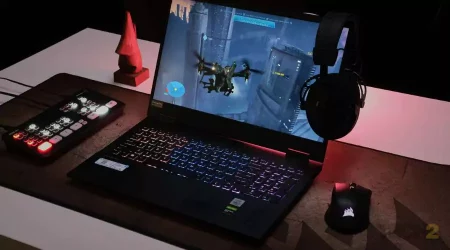



Laptops have become the go-to computing devices for professionals, students, and creatives. Their portability and versatility allow us to work on the go, but the small form factor can sometimes limit productivity and connectivity when we’re back at our desks. That’s where PC docking stations come to the rescue. A docking station is a powerful accessory that expands the capabilities of your laptop, transforming it into a versatile workstation. HP US offers an impressive lineup of docking stations designed to enhance productivity, streamline connectivity, and simplify your work-life balance. In this comprehensive guide, we’ll explore the benefits of using HP PC docking stations, review the top models available, and provide valuable insights to help you make an informed choice.
What is a PC Docking Station?
With the help of a PC docking station, you can connect your laptop to a variety of devices and peripherals, thereby converting it into a fully working desktop workstation. Docking stations provide additional ports and connections that your laptop may lack, allowing you to seamlessly connect multiple external displays, keyboards, mice, printers, and other devices.
Benefits of Using a PC Docking Station:
- Enhanced Productivity: Docking stations create a more ergonomic workspace with multiple monitors and a comfortable keyboard and mouse setup, boosting productivity and multitasking capabilities.
- Simplified Connectivity: With a docking station, you no longer need to plug and unplug multiple cables every time you move your laptop. A single connection to the docking station provides access to all your peripherals.
- Cable Management: Docking stations help to keep your workspace tidy by minimizing cable clutter and organizing connections in one central hub.
- Cost-Effective Solution: Instead of investing in separate peripherals for your laptop and desktop, a docking station allows you to utilize the same accessories for both setups.
HP PC Docking Stations for laptop: Unleashing Workforce Efficiency
HP US offers a wide range of docking stations that cater to different needs and preferences. Let’s explore some of the top HP docking station models:
1.HP thunderbolt dock 230W G2 w/ combo cable
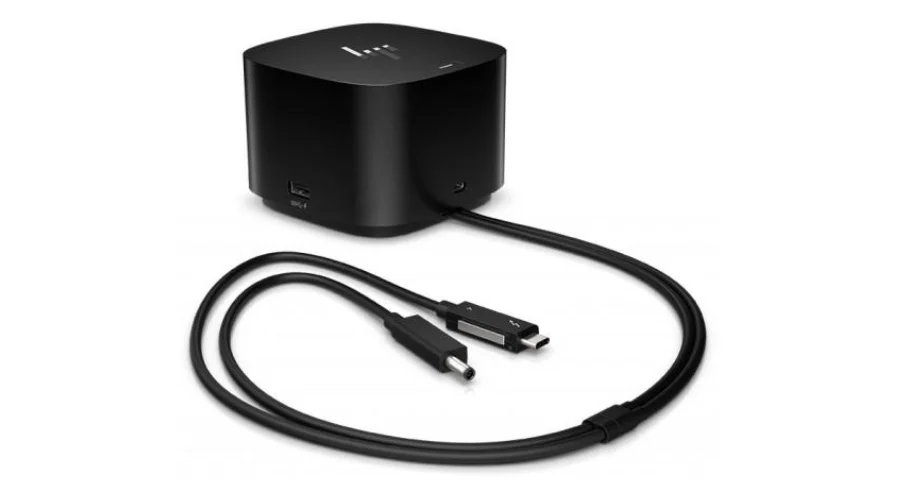
Modern technology known as Thunderbolt integrates data, video, and power delivery capabilities into one small connection. The Thunderbolt Dock 230W G2 harnesses the power of Thunderbolt to provide unparalleled connectivity and performance for your laptop. Thunderbolt offers data transfer speeds of up to 40Gbps, enabling rapid file transfers, backups, and data access. With support for multiple external displays, Thunderbolt delivers stunning 4K and even 5K video resolution, providing a rich visual experience for creative tasks and presentations. Thunderbolt delivers up to 100W of power to charge your laptop and peripherals, reducing the need for extra power adapters.
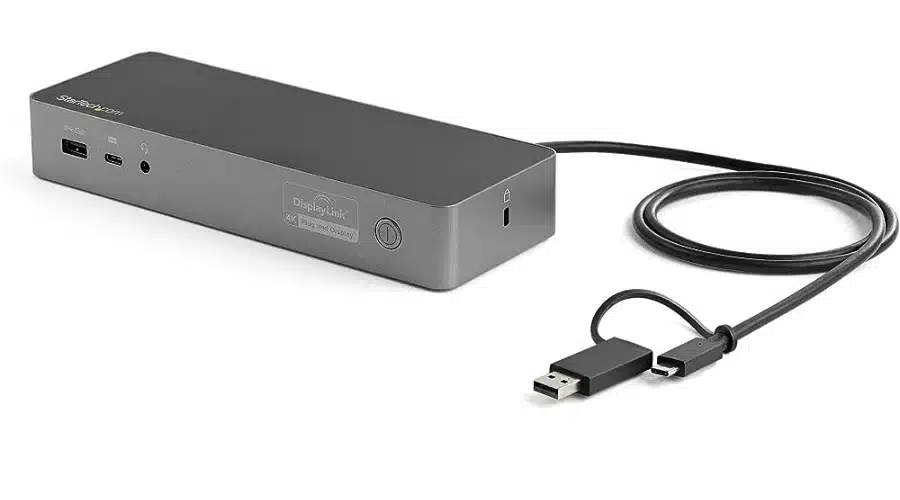
2. Targus USB-C universal DV4K docking station with 100W power delivery
The USB-C Universal DV4K Docking Station is built on the foundation of USB-C technology, the latest standard in data and power connectivity. USB-C is known for its versatility and compact design, making it the go-to interface for laptops and devices. USB-C supports a wide range of peripherals and accessories, allowing you to connect multiple devices through a single cable. With USB 3.1 Gen 1 or Gen 2 support, USB-C delivers rapid data transfer speeds, ensuring efficient file transfers and backups. USB-C enables power delivery to charge laptops and devices with up to 100W of power, eliminating the need for multiple adapters.
3. HP USB-C to USB-A Hub
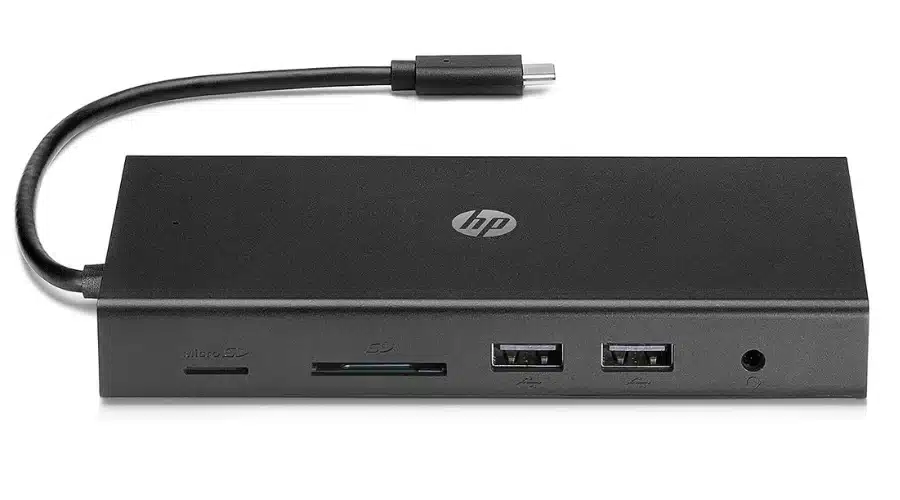
As technology evolves, newer laptops and devices increasingly adopt the USB-C interface for its versatility and higher data transfer speeds. However, many traditional peripherals and accessories still rely on the familiar USB-A ports. The HP USB-C to USB-A Hub acts as a bridge, providing a seamless connection between USB-C devices and USB-A peripherals. The hub allows you to connect your USB-C devices to USB-A peripherals, such as external hard drives, printers, keyboards, and mice. With support for USB 3.1 Gen 1, the hub ensures speedy data transfer at up to 5Gbps, facilitating quick file transfers and backups. The hub requires no drivers or additional software, offering a hassle-free, plug-and-play experience.
4. HP Thunderbolt Dock 280W G4 w/Combo Cable
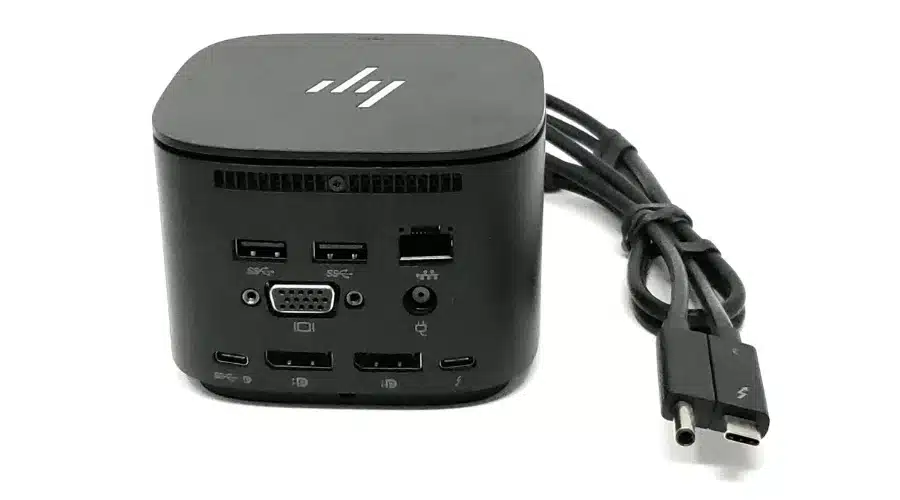
The HP Thunderbolt Dock 280W G4 with Combo Cable is a cutting-edge docking station designed to optimize productivity and connectivity for compatible HP laptops. It is a cheap docking station featuring Thunderbolt technology, it delivers high-speed data transfer and power delivery capabilities. The Combo Cable streamlines setup with multiple connectors in one, reducing cable clutter. This docking station offers a wide range of ports, including Thunderbolt, USB, DisplayPort, and Ethernet, providing seamless integration for various peripherals. With dual display support, ergonomic benefits, and a powerful 280W charger, it enhances both fixed and mobile workspaces. The HP Thunderbolt Dock 280W G4 with Combo Cable is a powerful solution for users seeking a versatile and efficient docking station.
Choosing the Right HP Docking Station
Selecting the perfect HP docking station depends on your specific needs and laptop compatibility.
- Compatibility: Ensure the docking station is compatible with your laptop’s ports, connectivity options, and power requirements.
- Port Availability: Evaluate the number and types of ports offered by the docking station to meet your connectivity needs for peripherals and external displays.
- Monitor Support: If you require multiple external displays, check the dock’s capabilities for supporting the desired number of monitors and their resolution.
- Power Delivery: Some docking stations offer power delivery to charge your laptop while connected, eliminating the need for an extra power adapter.
- Budget Considerations: While HP offers docking stations to suit different budgets, consider the features and benefits that align with your requirements.
Conclusion
A fantastic selection of docking stations are available from HP US, enabling your laptop’s full potential and boosting connectivity and productivity to new heights. Whether you opt for the versatile HP USB-C Dock G5, the powerful HP Thunderbolt Dock 120W G2, or the flexible HP USB-C Universal Dock, each docking station brings significant value to your work-life balance. By creating a clutter-free, multi-monitor workspace, HP docking stations enhance your efficiency, support flexible work solutions, and future-proof your investment. Whether you’re a professional seeking seamless productivity or a student striving for top-notch performance, an HP docking station is the ultimate tool to unleash the power of productivity. For more information on PC docking stations, visit Findwyse.